> ## Documentation Index
> Fetch the complete documentation index at: https://graphite-58cc94ce.mintlify.site/docs/llms.txt
> Use this file to discover all available pages before exploring further.
# Quick Start
> Get started using the Graphite VS Code extension to stack pull requests.
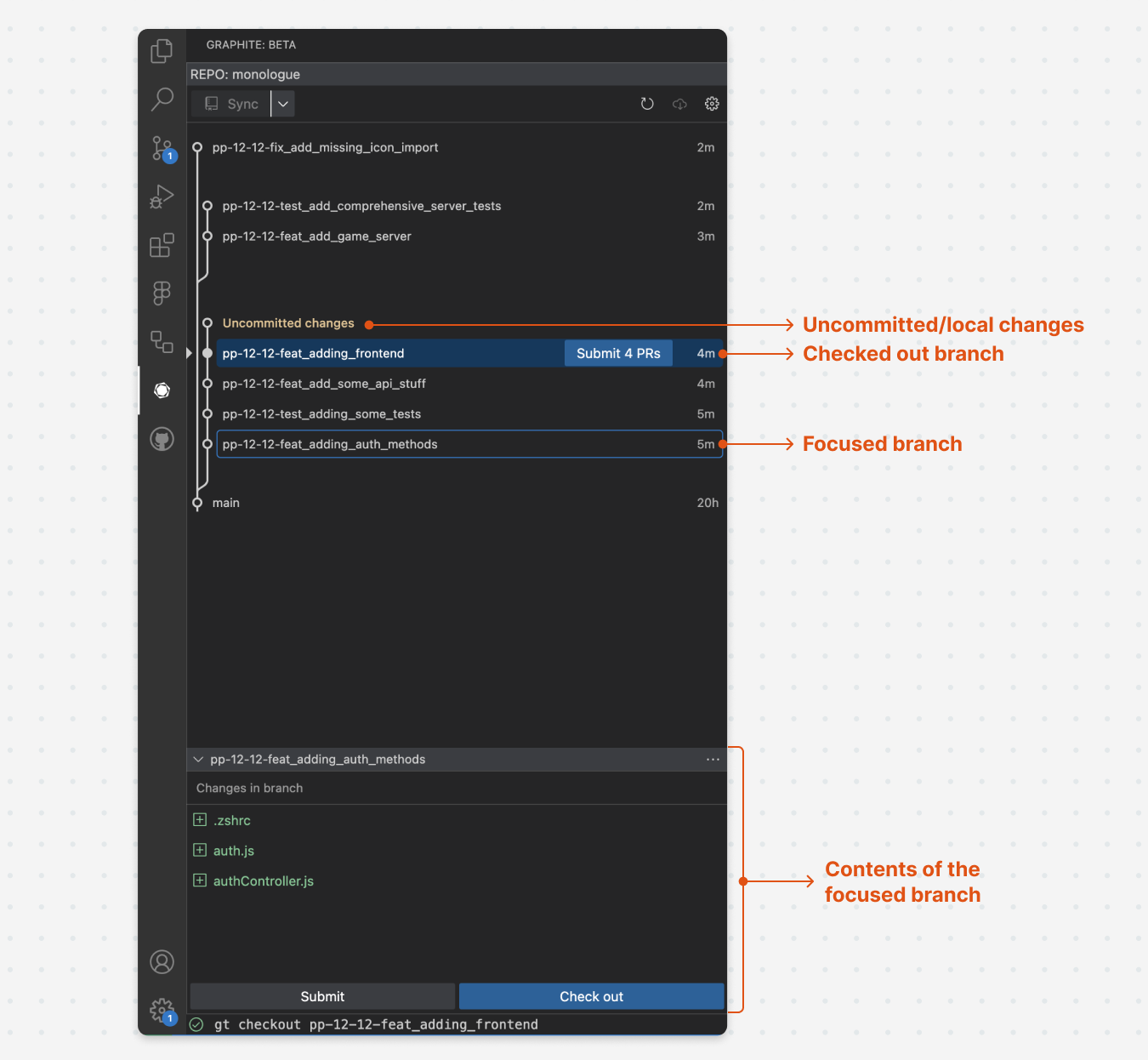
## Understand elements of the VS Code extension
## Walkthrough video
## Check out a branch
There are two ways to check out branch in the VS Code extension:
1. Double-click the branch on the stack view
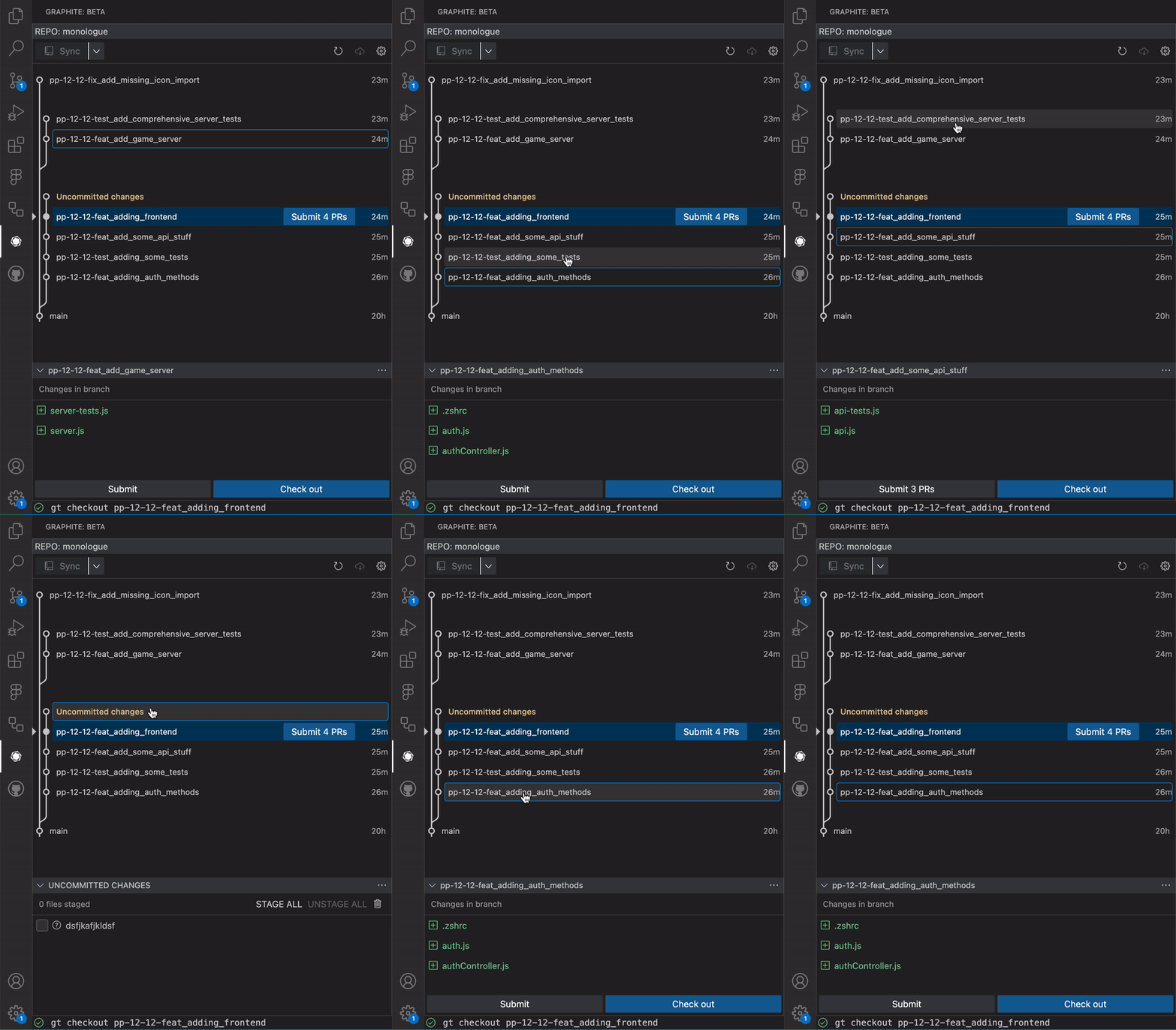
2. Focus a branch (single-click a branch such that it has a blue outline) and click "check out" in the branch info panel
A checked out branch will be indicated by a blue background/a pointer on the left side of the stack view.
## Focus a branch
Focusing a branch allows you to see what's been changed in the branch without checking it out. To focus a branch, single-click the branch in the visualization such that it has a blue outline. Focusing a branch adjusts the branch info panel so that it shows the files touched by that branch.
## View uncommitted changes
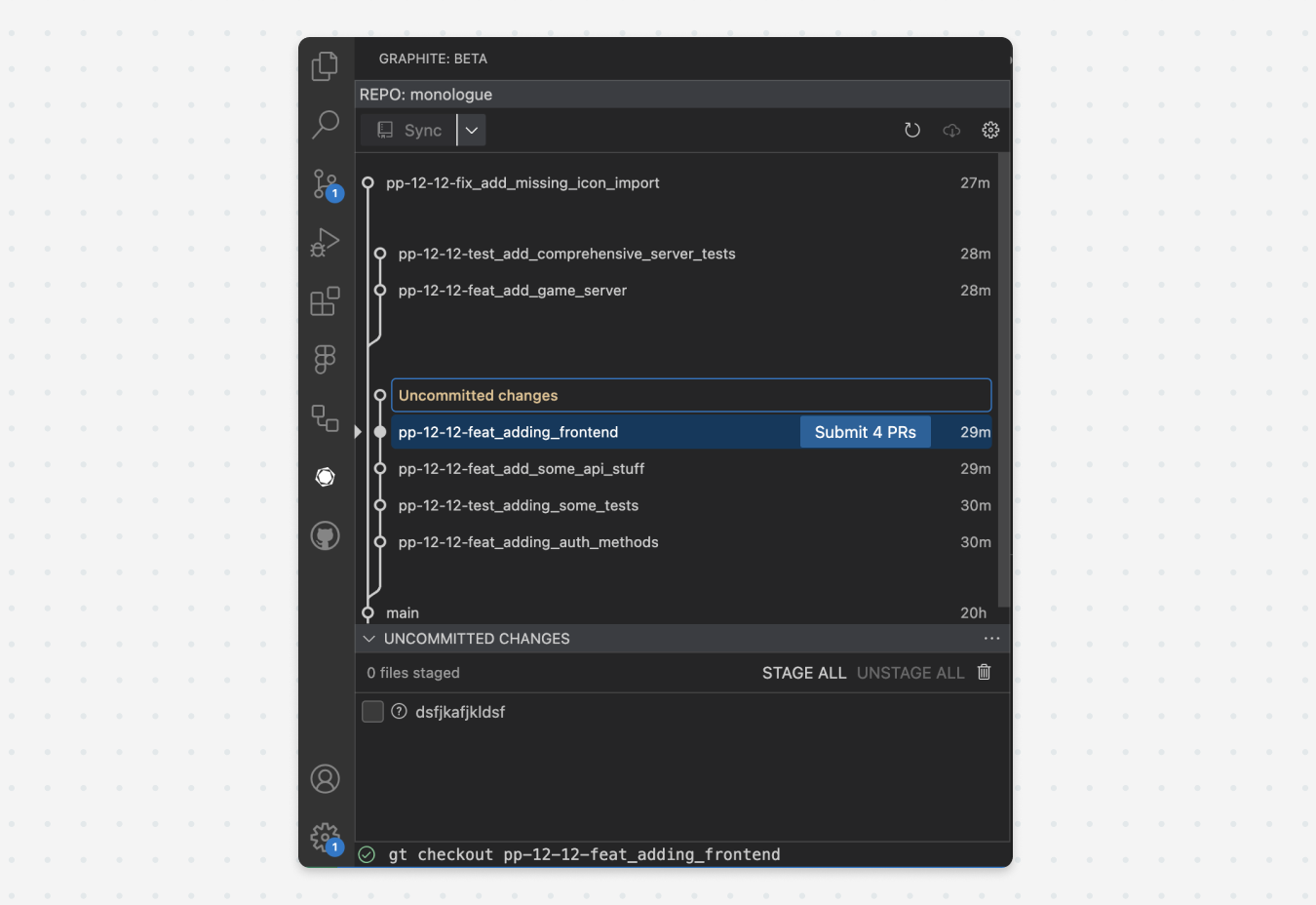
Uncommitted changes are represented by a node labeled "uncommitted changes" on the stack view. To see your uncommitted changes in the extension, focus the "uncommitted changes" node as you would any other branch. The branch info panel will adjust to a staging environment with your local changes.
## Staging and unstaging files
Toggling the checkbox near each file in the uncommitted changes panel will stage or unstage that file independently. Hovering over the file will give you the option to view the diff, or delete those changes.
There are additional options to "stage all," "unstage all," and "delete all changes."
## Creating a new branch/modifying a branch
After staging relevant changes, you can **create a new branch** by entering a commit message and clicking "create new branch."
To modify an existing branch, ensure you have the desired branch checked out, stage relevant changes, check the "modify \" checkbox, and click "commit to the current branch."
### Setting default modify behavior
When modifying a branch, you can either create a new commit on that branch, or modify the previous commit on that branch. You can set your preferred behavior in the extension's settings:
Note that if your preferred modify behavior is commit, you'll be prompted to enter a commit message before creating the commit. If the default behavior is amend, you won't be prompted to do so.
## Drag to move/rebase branches
You can re-arrange branches by dragging them onto a new parent.
## Tracking and getting branches
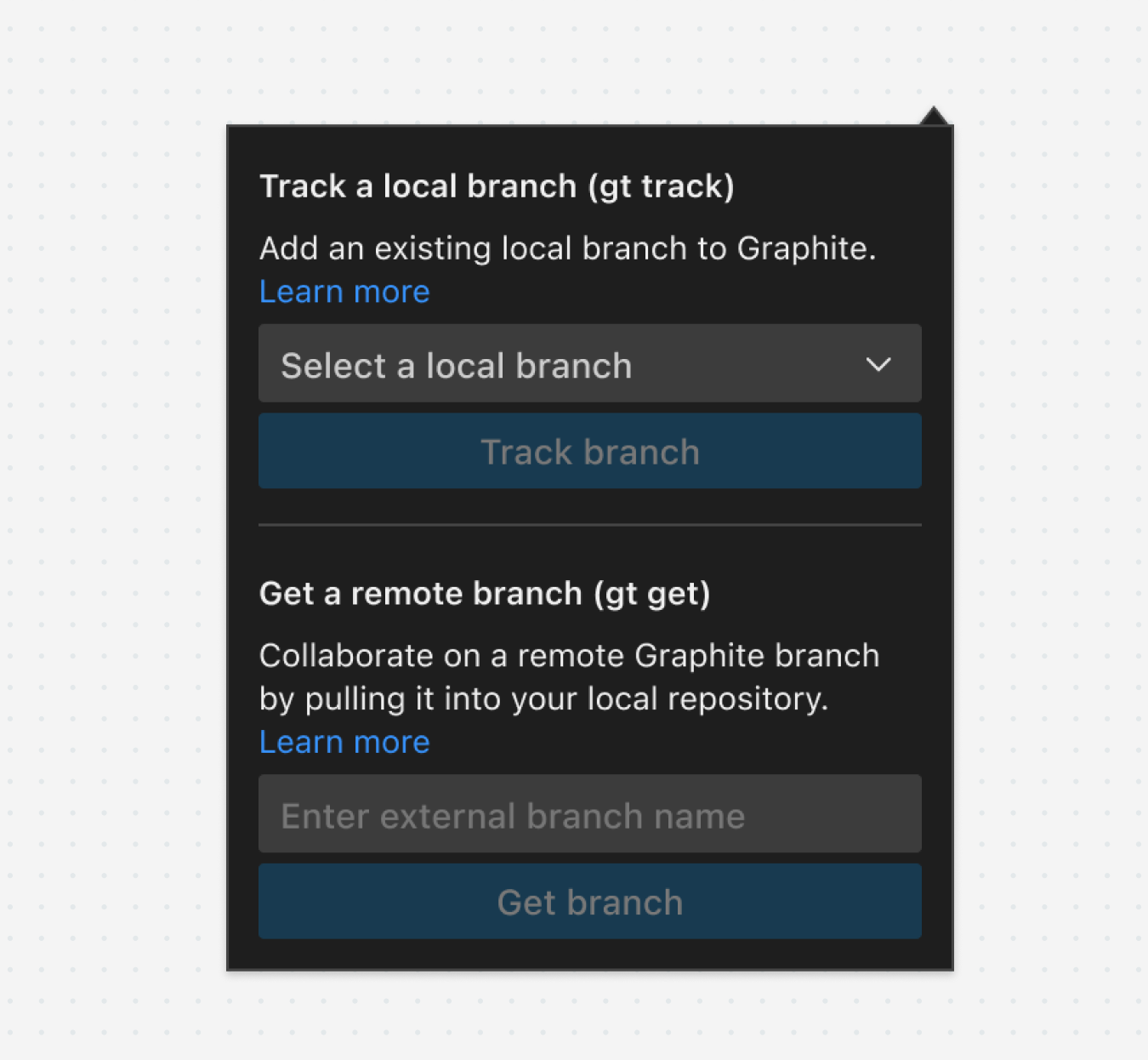
You can track branches onto a parent by clicking the "cloud" icon in the upper right hand corner of the extension. This is equivalent to the CLI's `gt track` and `gt get` commands.
 ## Walkthrough video
## Check out a branch
There are two ways to check out branch in the VS Code extension:
1. Double-click the branch on the stack view
2. Focus a branch (single-click a branch such that it has a blue outline) and click "check out" in the branch info panel
A checked out branch will be indicated by a blue background/a pointer on the left side of the stack view.
## Focus a branch
Focusing a branch allows you to see what's been changed in the branch without checking it out. To focus a branch, single-click the branch in the visualization such that it has a blue outline. Focusing a branch adjusts the branch info panel so that it shows the files touched by that branch.
## Walkthrough video
## Check out a branch
There are two ways to check out branch in the VS Code extension:
1. Double-click the branch on the stack view
2. Focus a branch (single-click a branch such that it has a blue outline) and click "check out" in the branch info panel
A checked out branch will be indicated by a blue background/a pointer on the left side of the stack view.
## Focus a branch
Focusing a branch allows you to see what's been changed in the branch without checking it out. To focus a branch, single-click the branch in the visualization such that it has a blue outline. Focusing a branch adjusts the branch info panel so that it shows the files touched by that branch.
 ## View uncommitted changes
Uncommitted changes are represented by a node labeled "uncommitted changes" on the stack view. To see your uncommitted changes in the extension, focus the "uncommitted changes" node as you would any other branch. The branch info panel will adjust to a staging environment with your local changes.
## View uncommitted changes
Uncommitted changes are represented by a node labeled "uncommitted changes" on the stack view. To see your uncommitted changes in the extension, focus the "uncommitted changes" node as you would any other branch. The branch info panel will adjust to a staging environment with your local changes.
 ## Staging and unstaging files
Toggling the checkbox near each file in the uncommitted changes panel will stage or unstage that file independently. Hovering over the file will give you the option to view the diff, or delete those changes.
There are additional options to "stage all," "unstage all," and "delete all changes."
## Creating a new branch/modifying a branch
After staging relevant changes, you can **create a new branch** by entering a commit message and clicking "create new branch."
To modify an existing branch, ensure you have the desired branch checked out, stage relevant changes, check the "modify \
## Staging and unstaging files
Toggling the checkbox near each file in the uncommitted changes panel will stage or unstage that file independently. Hovering over the file will give you the option to view the diff, or delete those changes.
There are additional options to "stage all," "unstage all," and "delete all changes."
## Creating a new branch/modifying a branch
After staging relevant changes, you can **create a new branch** by entering a commit message and clicking "create new branch."
To modify an existing branch, ensure you have the desired branch checked out, stage relevant changes, check the "modify \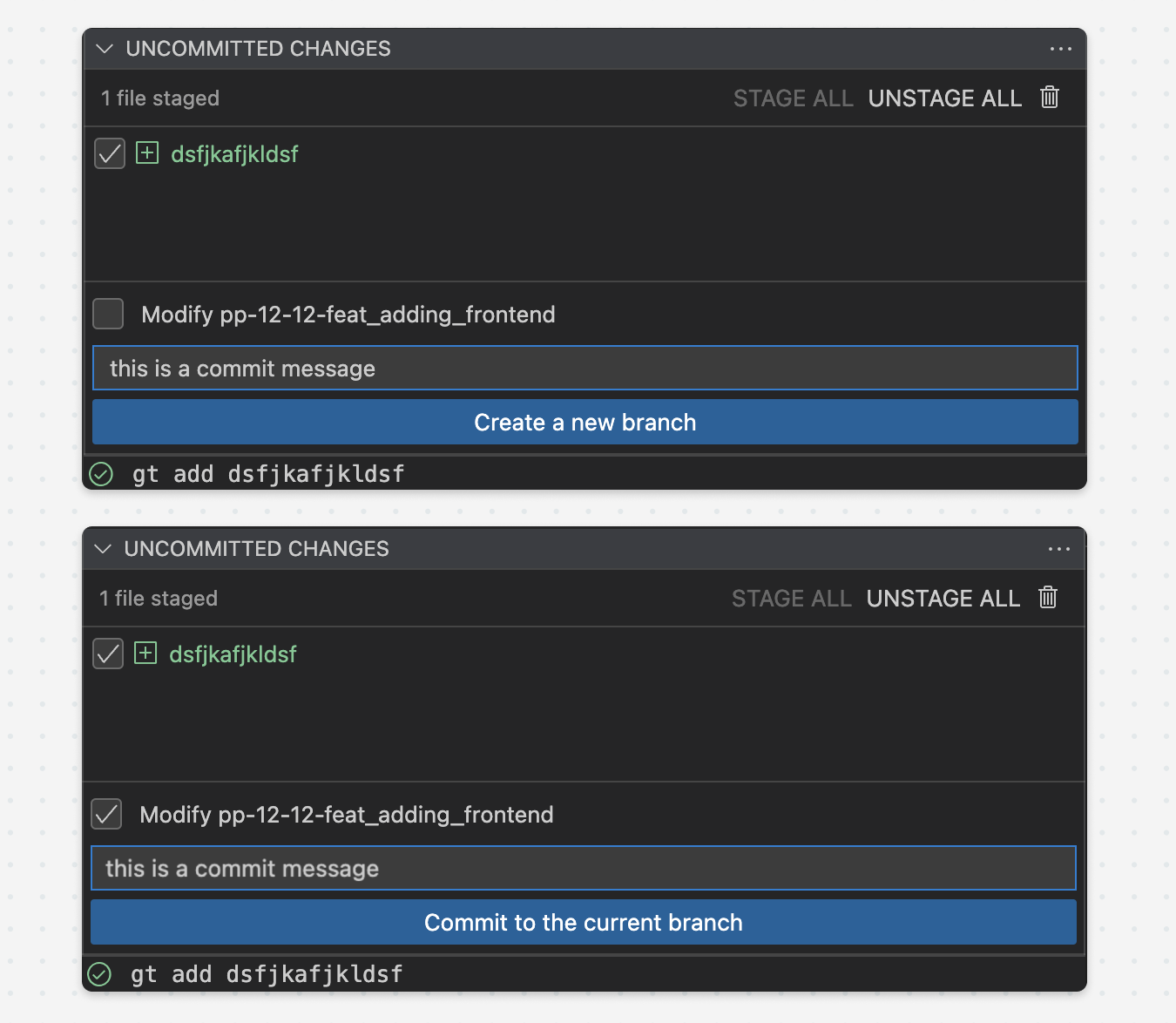 ### Setting default modify behavior
When modifying a branch, you can either create a new commit on that branch, or modify the previous commit on that branch. You can set your preferred behavior in the extension's settings:
### Setting default modify behavior
When modifying a branch, you can either create a new commit on that branch, or modify the previous commit on that branch. You can set your preferred behavior in the extension's settings:
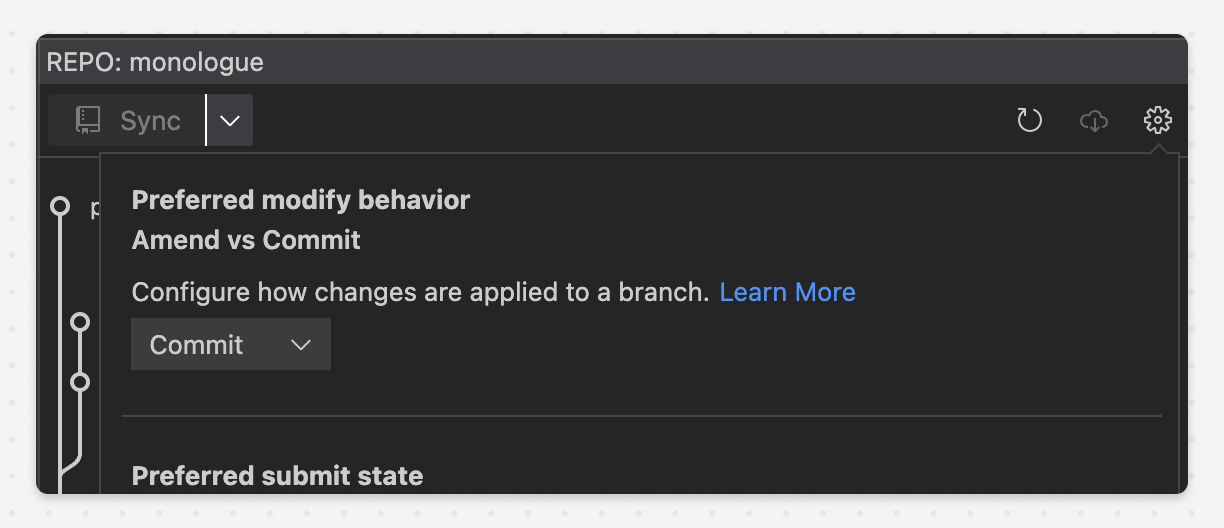 Note that if your preferred modify behavior is commit, you'll be prompted to enter a commit message before creating the commit. If the default behavior is amend, you won't be prompted to do so.
## Drag to move/rebase branches
You can re-arrange branches by dragging them onto a new parent.
Note that if your preferred modify behavior is commit, you'll be prompted to enter a commit message before creating the commit. If the default behavior is amend, you won't be prompted to do so.
## Drag to move/rebase branches
You can re-arrange branches by dragging them onto a new parent.
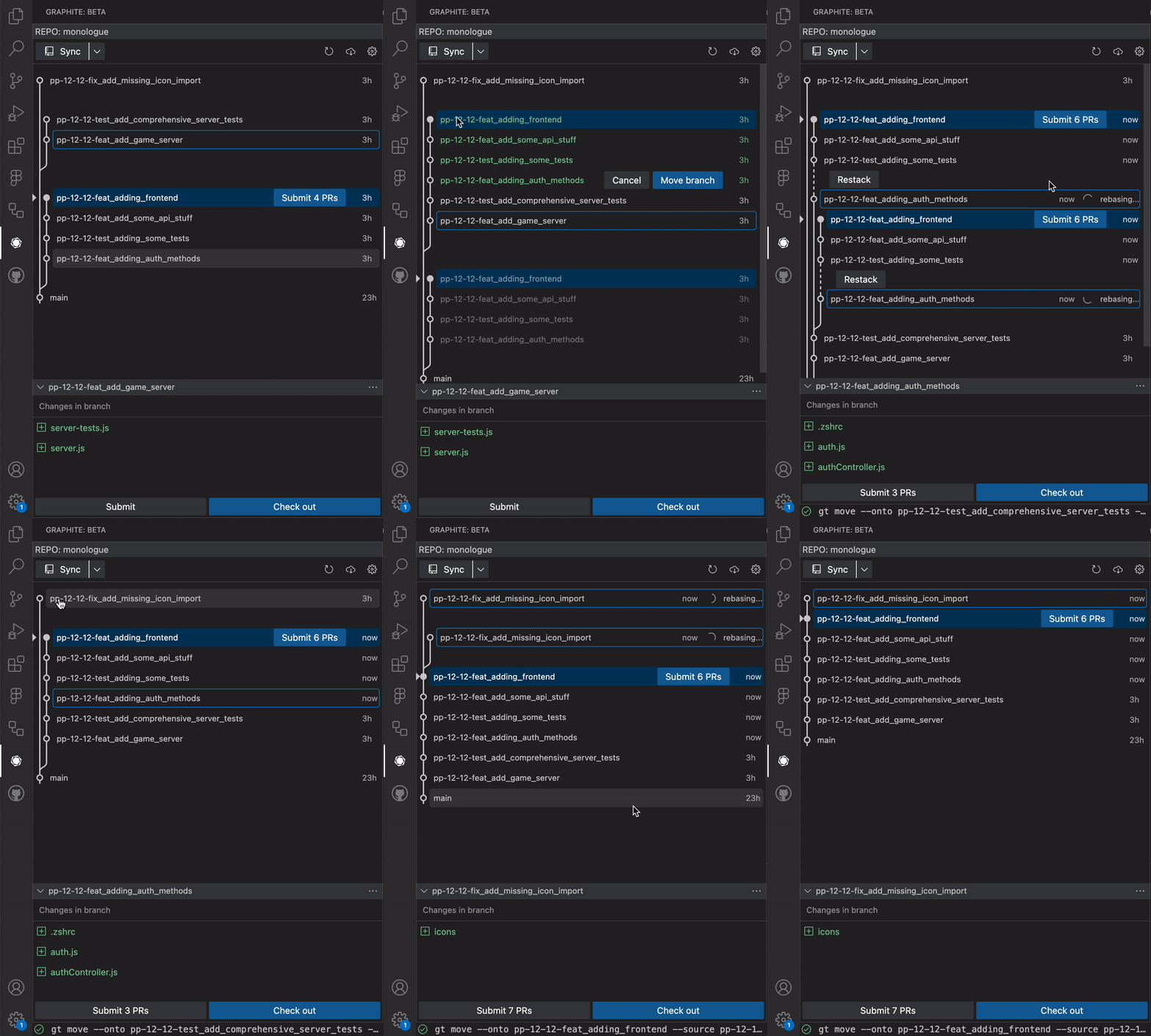 ## Tracking and getting branches
You can track branches onto a parent by clicking the "cloud" icon in the upper right hand corner of the extension. This is equivalent to the CLI's `gt track` and `gt get` commands.
## Tracking and getting branches
You can track branches onto a parent by clicking the "cloud" icon in the upper right hand corner of the extension. This is equivalent to the CLI's `gt track` and `gt get` commands.